How aRDee works
aRDee lets you use a computer that isn't in front of you. Its screen appears in a window on whatever you're sitting at, and your mouse and keyboard drive it as if you were there. Nothing on this page needs you to know anything technical.
The five things people ask most
The two computers
Everything below is about two computers, and it is worth naming them once so the rest makes sense:
- The computer you are sitting at. A laptop, a desktop, a phone, a tablet — anything with a web browser. You do not install anything here. You sign in to this website and that is enough.
- The computer you want to reach. The one across the room, at the office, or at your parents' house. This one does need the aRDee app installed, and it needs to be switched on and connected to the internet when you want to use it.
A computer can be both. The office iMac you reach from home on Monday can be the thing you sit at on Tuesday and use to reach the machine at home.
Put aRDee on the computer you want to reach
Do this once per computer, sitting at that computer. It takes about two minutes. In the portal, click Get the App in the left-hand column.
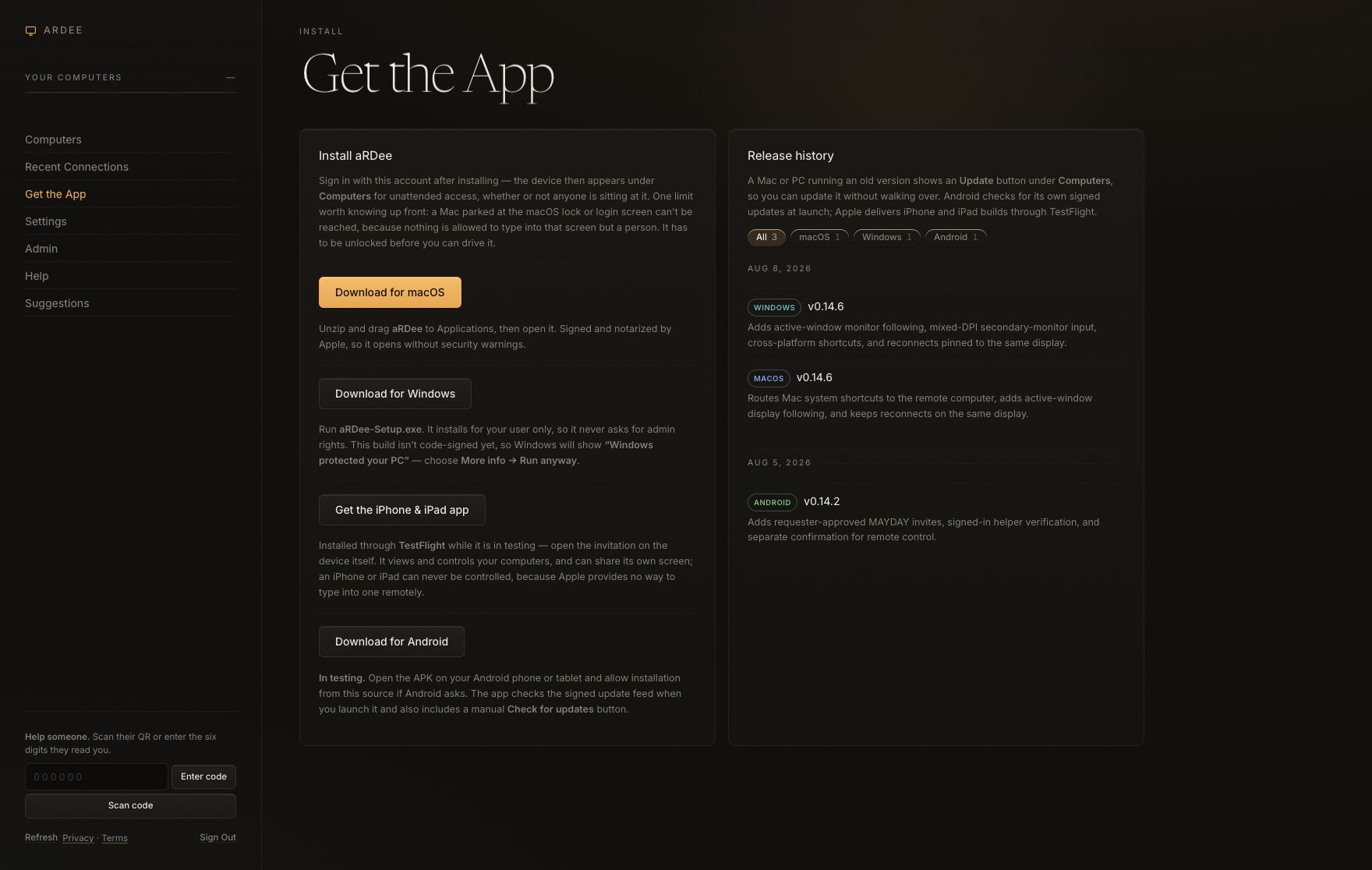
- Get the App — the link in the left-hand column that gets you to this page.
- Download for macOS — for any Mac. You get a zip file. Double-click it, then drag the aRDee icon into your Applications folder and open it.
- Download for Windows — you get a file called
aRDee-Setup.exe. Run it. Windows may put up a blue box saying “Windows protected your PC”. That box appears because this app hasn't paid for a Windows signature yet, not because anything is wrong with it. Click More info, then Run anyway. - Download for Android. Download the signed APK on your phone or tablet, open it, and allow installation from this source if Android asks. It is still in hardware testing. Once installed, aRDee checks for signed updates when you launch it; you can also use Check for updates inside the app.
Then sign in on that computer
- Open aRDee on the computer you just installed it on.
- Type the same email and password you use on this website. If you don't have an account yet, make one first — see the next section.
- That's it. Leave the app running. It sits quietly in the background and it does not need anybody to be logged in or sitting there.
- Go back to the computer you're actually using, reload the portal, and the machine will be in the list on the left.
One thing a Mac won't do
If a Mac is showing its gray login screen — the one asking for a password before anyone has logged in — aRDee usually can't type into it, because macOS deliberately doesn't let any app type there. When you connect to a Mac in that state you may get a small Unlock this Mac box: put that Mac's own username and password in it and it will log in for you. If that box doesn't appear, or it doesn't work, somebody has to unlock that Mac in person once. After that it stays reachable.
Sign in from the computer you are sitting at
Go to the portal in any browser. You'll see this.
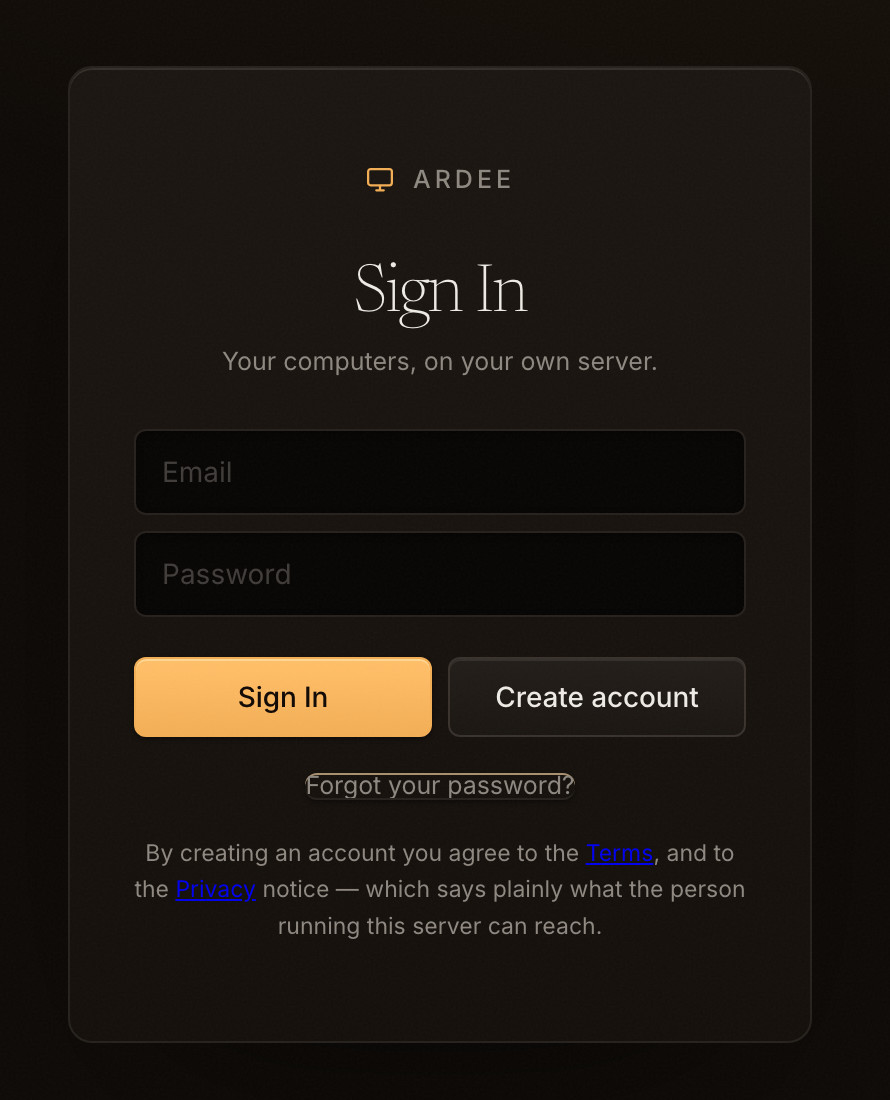
- Email and password. Your own — not the login of any particular computer. One account holds all your machines.
- Sign In if you already have an account.
- Create account if you don't. You may be asked for an invite code: this server doesn't let just anybody sign up, so whoever runs it has to give you one. If you don't have a code, ask them for it.
Forgot your password? is under the buttons. It emails you a link that lets you pick a new one, and the link is only good for an hour.
The first time you sign in you may see a line asking you to confirm your email address. Do it — it's the only way to reset your password later if you forget it.
When does the website sign me out? After 30 minutes without using the portal, or after 12 hours even if you stay busy. A warning appears two minutes before an inactive session ends. Choosing Sign Out ends that browser session immediately.
Read your list of computers
Every computer you've installed aRDee on shows up in the column on the left. The little colored dot under each name is the whole status report.
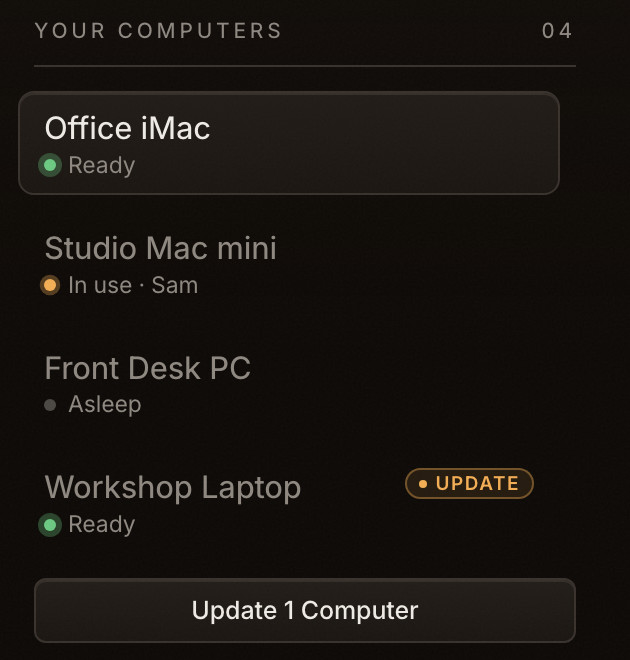
- Green— Ready. That computer is on, connected, and waiting for you. Click it, then click Connect.
- Orange— In use. Somebody is already connected to it, and the number beside it is how many connections are open. To see who, open Recent Connections. You can still connect; you'll both be driving the same screen, which is fine if you meant to and confusing if you didn't.
- Gray— Asleep. That computer isn't answering. See when it says Asleep.
- Update — a newer version of the aRDee app is available for that machine, and you can install it from here without walking over to it. As soon as any machine is behind, a button appears under the list to do the lot in one go; it counts them for you, so it reads Update 1 Computer or Update All 3 Computers and you always know what you're about to restart. The app on each one restarts, which takes a few seconds. A machine that is Asleep can't be updated — it has to be awake to be sent anything.
Click any name and the big panel on the right changes to show that computer.
Connect
This is the whole portal. Everything you'll use lives on this one page.
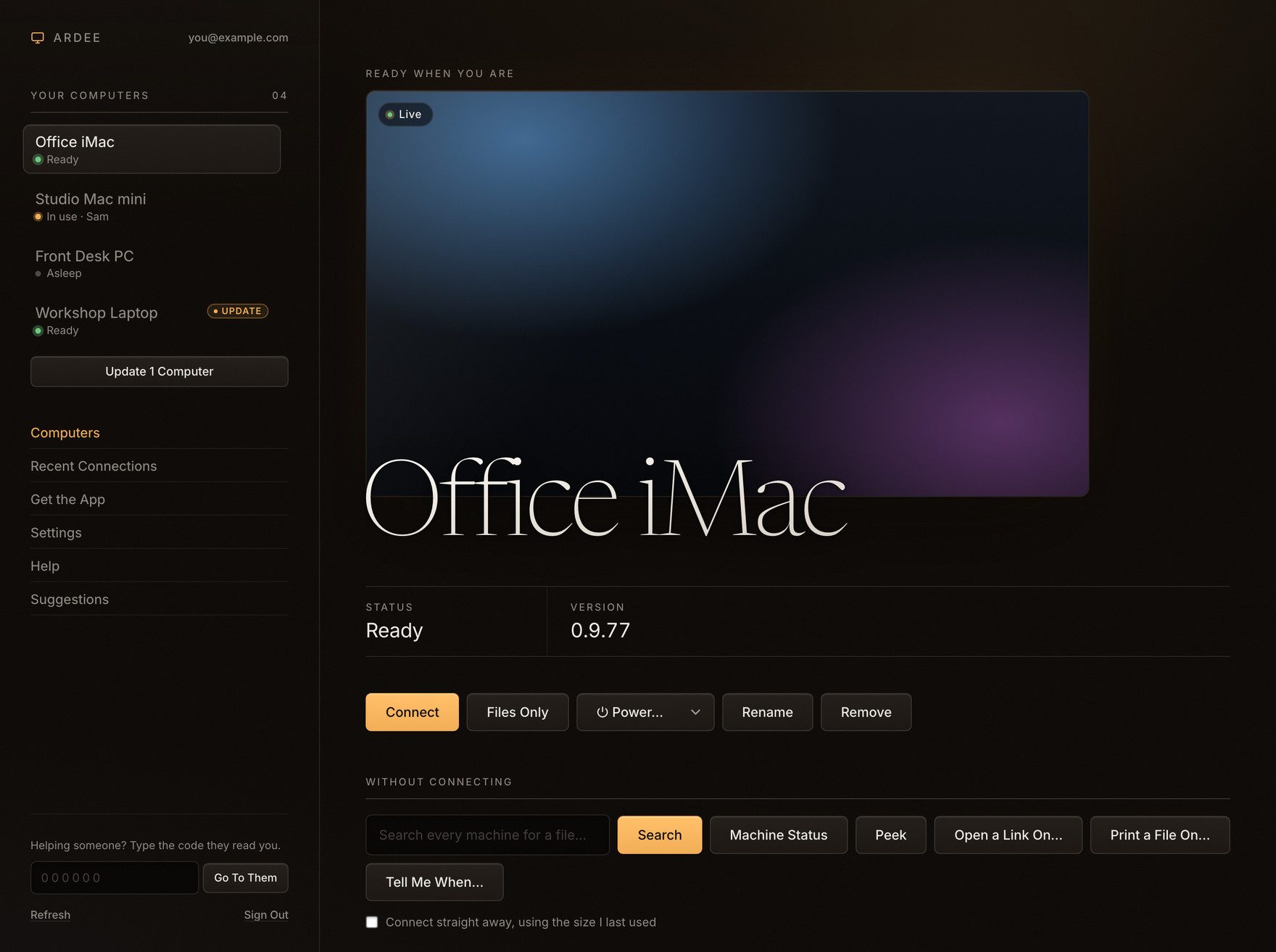
- Your computers. Click one to select it.
- The dot and the word under each name. Ready, In use, or Asleep.
- Update. A newer app is waiting for that machine.
- The section links. Recent Connections is a log of everyone who has connected to your machines. Get the App is the installer. Settings is your account. Help is this page. Suggestions is where you ask for things aRDee doesn't do yet.
- Helping someone? The six-digit code box — covered below.
- A picture of that computer's screen right now. It's a still photo, taken when you selected the machine, not live video. It's there so you can tell at a glance whether somebody is in the middle of something.
- Connect. The button the whole page exists for.
- Things you can do without connecting. Three of these are invisible at the other end: searching every machine for a file, Machine Status (disk space left, battery, how long it's been on, whether somebody is sitting at it), and Peek — one still picture of a screen. The other three are not invisible, and shouldn't be mistaken for it: Open a Link On… opens a page on that computer's screen, Print a File On… puts paper out of its printer, and Tell Me When… keeps an eye on something and tells you when it changes.
What the box that pops up is asking
Click Connect and you get one short question before anything happens.
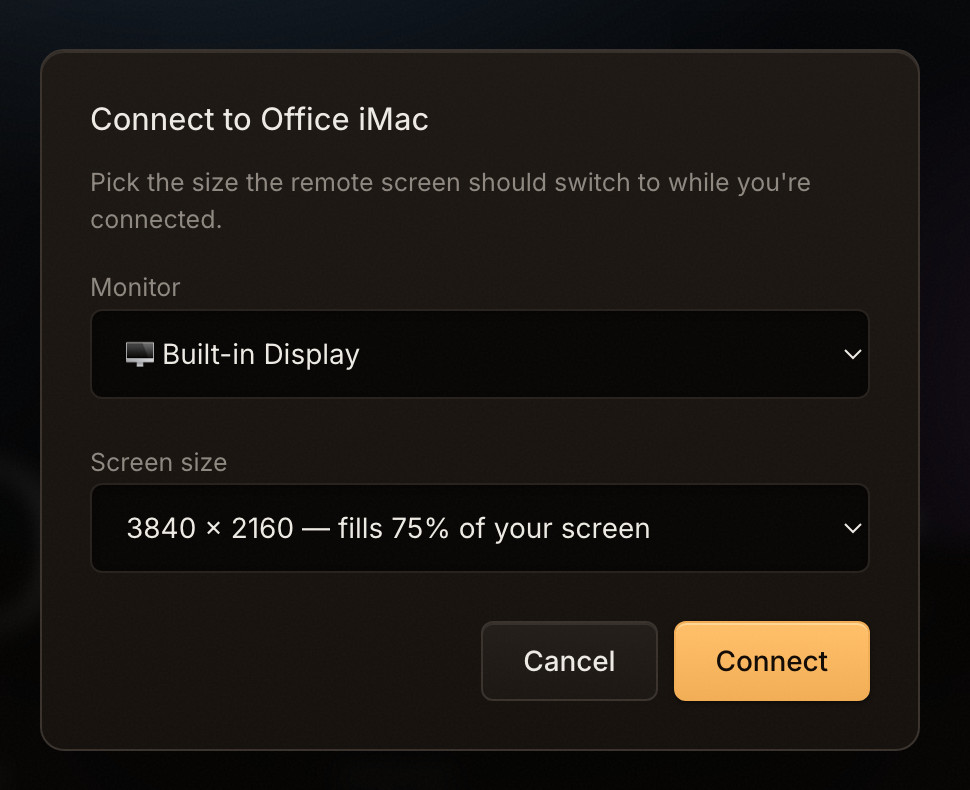
- Monitor. Only appears if that computer has more than one screen plugged in. Pick the one you want to see. You can swap to the other one later without disconnecting.
- Screen size. The other computer will actually change its screen size to this while you're connected, and change back when you leave. The one already chosen for you is the one that will fill the most of your own screen — if you don't care, don't change it.
- Connect. A few seconds later the other computer's screen appears. Move your mouse, type, click. You're driving it.
If that question annoys you, tick Connect straight away, using the size I last used under the row of gray buttons, and you won't be asked again.
Files Only
The gray Files Only button next to Connect opens just the file panel — no picture, no mouse, no keyboard. Use it when all you want is to grab a document. It's much lighter, and it never takes over that computer's screen or changes its size.
It is still a connection, though. A Mac shows its small “Someone connected to this Mac” notice for this the same as for any other — that notice appears every time anybody connects, whichever button you pressed, and there is no way to turn it off. If that Mac has been set to ask first, somebody there has to click Allow before anything happens at all.
Getting out
Close the tab, or click the < arrow at the top left of the window. The other computer goes back to its own screen size and carries on as before.
The row of buttons along the top
Once you're connected there's a thin dark strip across the top of the window. These are the things you'll reach for most often.

- Back. Leave and return to your list of computers.
- The word next to it tells you how things are going — connecting, connected, reconnecting. If it says connected, you're in.
- Files. Opens the file panel. See below.
- Fit to screen, and the small arrow beside it for picking a different screen size for the other computer, mid-connection.
- Rewind. Replays the last minute of what you were looking at. Useful when a message flashed up and vanished before you could read it.
- Sound. Hear the other computer. New — still being tested This one has never been confirmed working on real hardware, so it may simply do nothing.
- ⋯ Everything else. There's a lot behind here; it gets its own list below.
- Full screen. Fills your whole display with the other computer. Press Esc to come back out.
- Reconnect. If the picture freezes or goes black, press this before you press anything else.
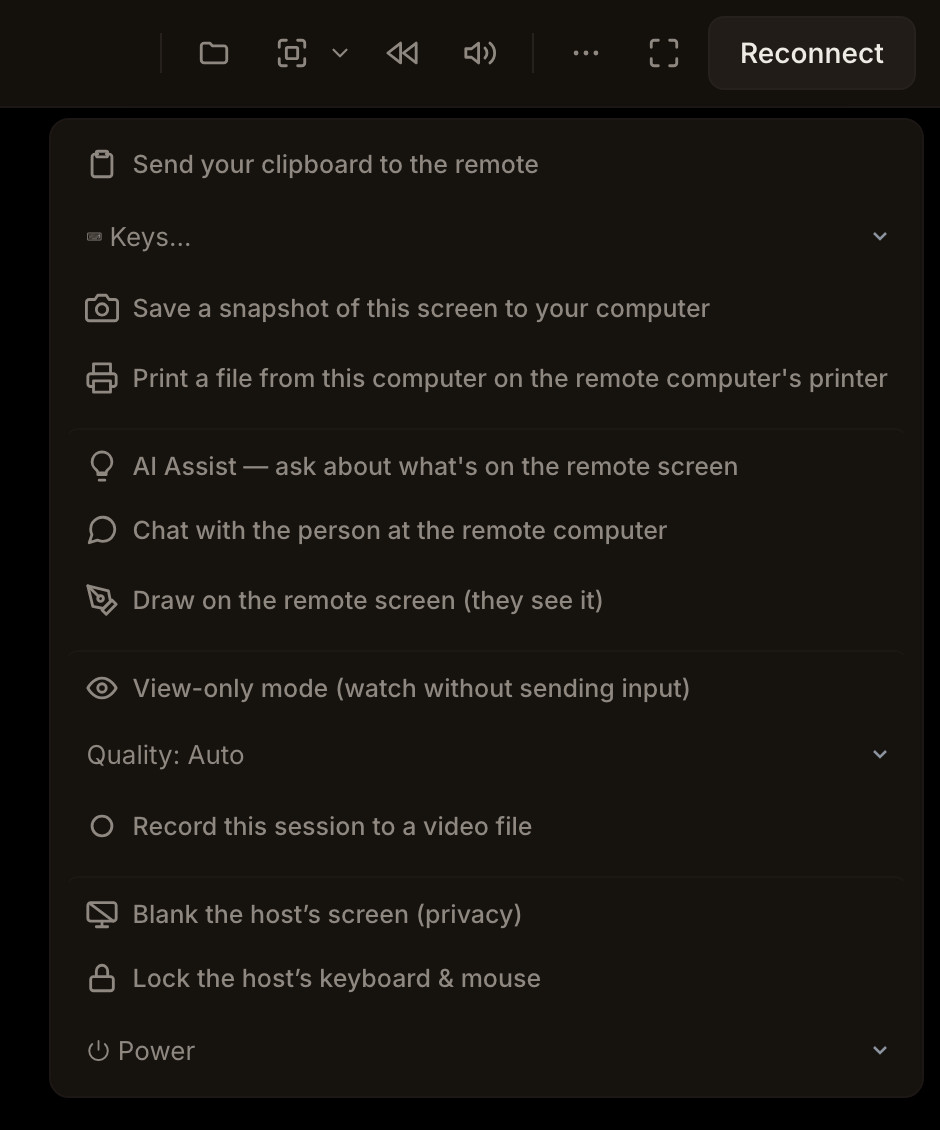
Behind the ⋯ button
Click ⋯ and you get this. Every line says what it does, so the list below is only for the ones where the wording deserves a second sentence.
Two words these buttons use
Several of them say “host”, and others say “remote”. Both are only ever shorthand for the computer you are connected to — the far one, not the one under your hands.
Move files both ways
Click the folder button in the toolbar. A panel slides in from the right showing what's on the other computer.
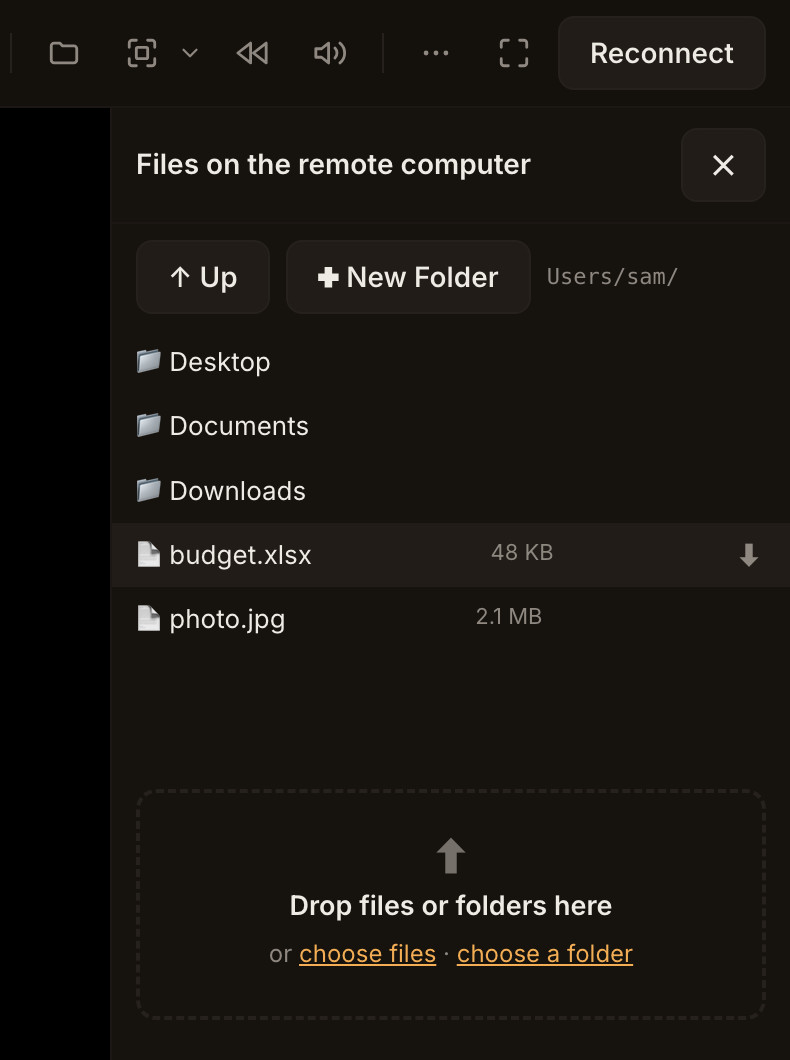
- The folder button in the toolbar opens and closes this panel.
- Up goes back to the folder above the one you're in.
- Where you are. The folder you're currently looking at, on the other computer.
- Folders and files. Click a folder to go into it.
- ⬇ to bring it to you. Point at a file and this arrow appears at the end of its
row. Click it and the file downloads to your own computer, into wherever your browser
normally puts downloads. It works on folders too — a folder arrives as one
.zipfile, which you unzip afterwards. - Drop files here to send them the other way. Drag a file (or a whole folder) from your own desktop onto this dashed area and it copies over to the folder you're looking at. If dragging is awkward, choose files opens the normal file picker instead.
If something with the same name is already there
You get asked, once per file, rather than aRDee quietly writing over something:
- Overwrite — replace the file that's already there.
- Keep both — the new one arrives with a slightly different name.
- Skip — leave things as they are and move on.
There's an Apply to all tick box if you're sending fifty files and don't want to be asked fifty times.
You can also right-click
Right-clicking a file in this panel gives you a short menu — including printing it on that computer's printer.
Help somebody else with a six-digit code
This is for the phone call that starts “my computer is doing something weird”. The person you're helping does not need an account, and their computer does not have to be in your list. It works once, for that one conversation.
Tell them to do this
- Open the aRDee app on their Mac. (They'll need to install it first — send them the portal and tell them to use Get the App.)
- Click the button that says Get a support code. They do not need to sign in for this.
- Six numbers appear. Ask them to read the numbers out to you.
- Tell them to leave the app open and stay near the computer.
Then you do this
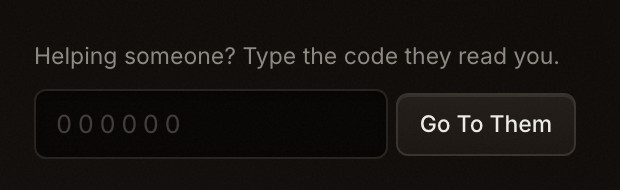
- Type the six numbers they read you into the box.
- Click Go To Them. Their screen opens the same way any of your own computers would.
What they should know before they read you that code
While the code is live you can see their screen and control their computer. The code dies when they quit the app, and it is good for that one visit only — it will not let you back in tomorrow. (If they quit it by accident and reopen it within a few minutes, the same code picks up where it left off, so a knocked-out Wi-Fi doesn't mean starting over.) It's worth saying all of this out loud to them, especially if they're nervous about it.
The Windows app doesn't have a support-code button yet — only the Mac one does.
When it says Asleep
Asleep means only one thing: that computer isn't answering right now. aRDee can't tell the difference between switched off, actually asleep, unplugged from the internet, and someone having quit the app — from here they all look identical.
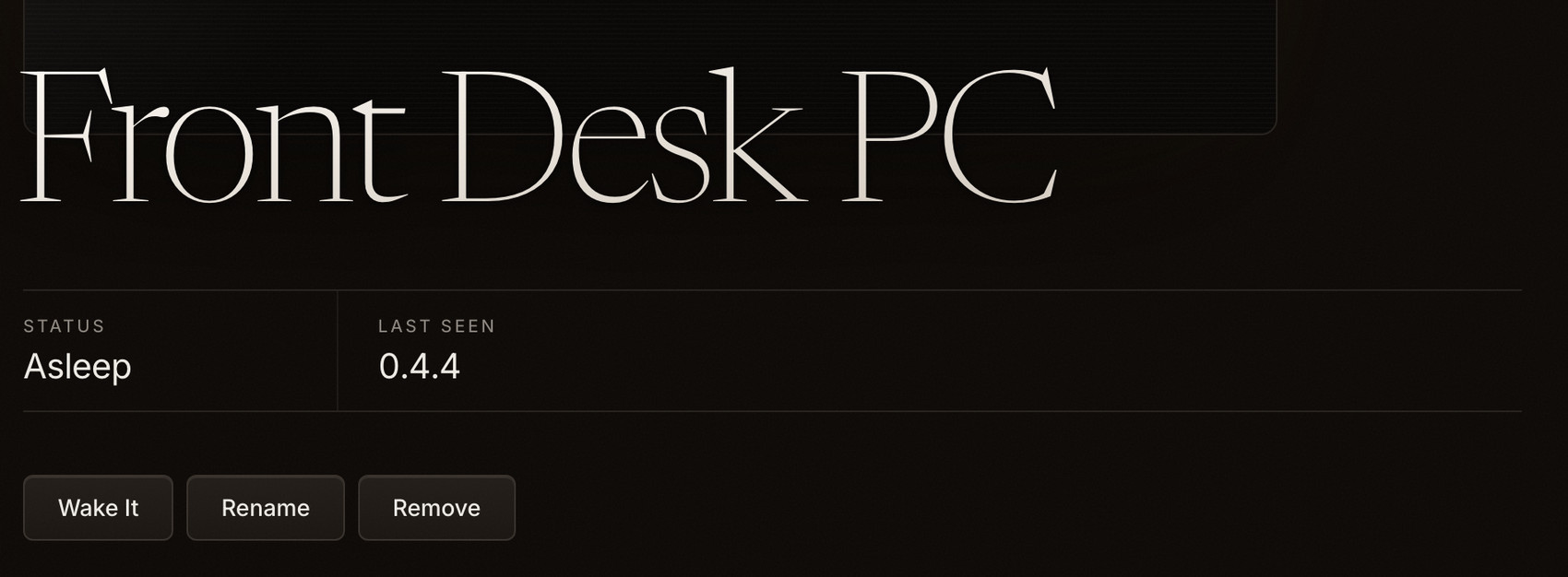
- Asleep. Notice there's no Connect button — there's nothing to connect to.
- Wake It. Worth a try, with a catch. Read on.
What to try, in order
- Wait ten seconds and press Refresh at the bottom of the left-hand column. A computer that just woke up takes a few seconds to say hello.
- Press Wake It, if it's offered. One wake-up signal goes out; aRDee then checks back three or four times over the next half minute, so the dot turns green on its own if it worked. If it's still gray after that, it didn't.
- If Wake It isn't offered, or says it can't: see the box below.
- Ask somebody to press a key on it. Unglamorous, and it always works.
The catch with Wake It
Waking a computer over the internet isn't really possible. What actually happens is that another one of your computers, awake and on the same network as the sleeping one, gets asked to shout down the wire and wake it up. So:
- If the sleeping computer is the only one you have in that building, there is nobody there to do the shouting, and aRDee will tell you so.
- It only works if the computer is asleep. If it's fully switched off, or unplugged, or its Wi-Fi is off, nothing can be done from here.
- A brand-new machine that has never been online with a recent version of aRDee won't have a Wake It button at all yet.
Keeping a machine reachable is mostly a matter of telling it not to fall asleep in the first place, in that computer's own energy settings.
Things that are new and still being tested
aRDee is being built quickly, and some of it has been written but never watched working on a real machine. Those parts are listed here rather than buried, because it's better to know in advance than to conclude you're doing it wrong.
If you try one of these and it doesn't work: that's expected, it's not your fault, and telling us genuinely helps.
Everything else on this page has been used on real machines.
When something isn't working
The picture is stuttery, blurry or slow
Open ⋯ and check Quality is set to Auto. Auto measures your connection and gives up sharpness to keep movement smooth, which is almost always the right trade. If you've pinned it to Native on a connection that can't carry it, it will stutter, and that is the setting rather than the software.
You may also see an amber bar saying the connection is going through the relay. That means your two computers couldn't reach each other directly and everything is being passed along by the aRDee server instead — slower, and limited. It usually sorts itself out on a different network, or if both machines are on the same VPN.
The screen has frozen or gone black
Press Reconnect at the top right. If that doesn't do it, go back to your list, wait for the dot to go green again, and connect afresh.
What I type ends up in the wrong place
Click once on the picture first — the window has to have your keyboard's attention before anything you type goes anywhere.
If you're driving a Windows PC from a Mac, or the other way round, the Command and Ctrl keys are swapped between them. There's a Translate ⌘ and Ctrl button in the ⋯ menu when that applies, and Keys in the same menu sends combinations your browser refuses to pass on, like Ctrl-Alt-Delete.
The list is empty, or one machine never appears
Go to that computer and check three things: aRDee is actually open, it's signed in with the same email you use here, and the machine is on the internet. Those three cover almost every case.
Somebody connected and it wasn't me
Open Recent Connections in the portal. It lists every connection to your machines, newest first, including ones you didn't start. If something there looks wrong, change your password in Settings — that signs out every other browser and phone — and then tell whoever runs this server.
How to get hold of a person
There are two places, and it's worth using the right one.
Curious what the server can and can't see? The Recent Connections page in the portal spells it out plainly, and there's the privacy notice as well.